
AudioRouter: A Visual Audio Router for Windows, With an API and an MCP Server Built In
Posted on:
I have been building and using AudioRouter daily for my own streaming and gaming setup for a few weeks now, and I wanted to show what it actually does instead of how it was built. Here is my current workflow and a tour of a few of the audio tools:
What it is
AudioRouter routes and processes Windows audio by drawing it. You drag an input onto a canvas, a microphone, a game, a browser tab, drop tools between it and an output, a noise gate, an EQ, a compressor, and the lines show you exactly where the sound is flowing and how loud it is while it plays.
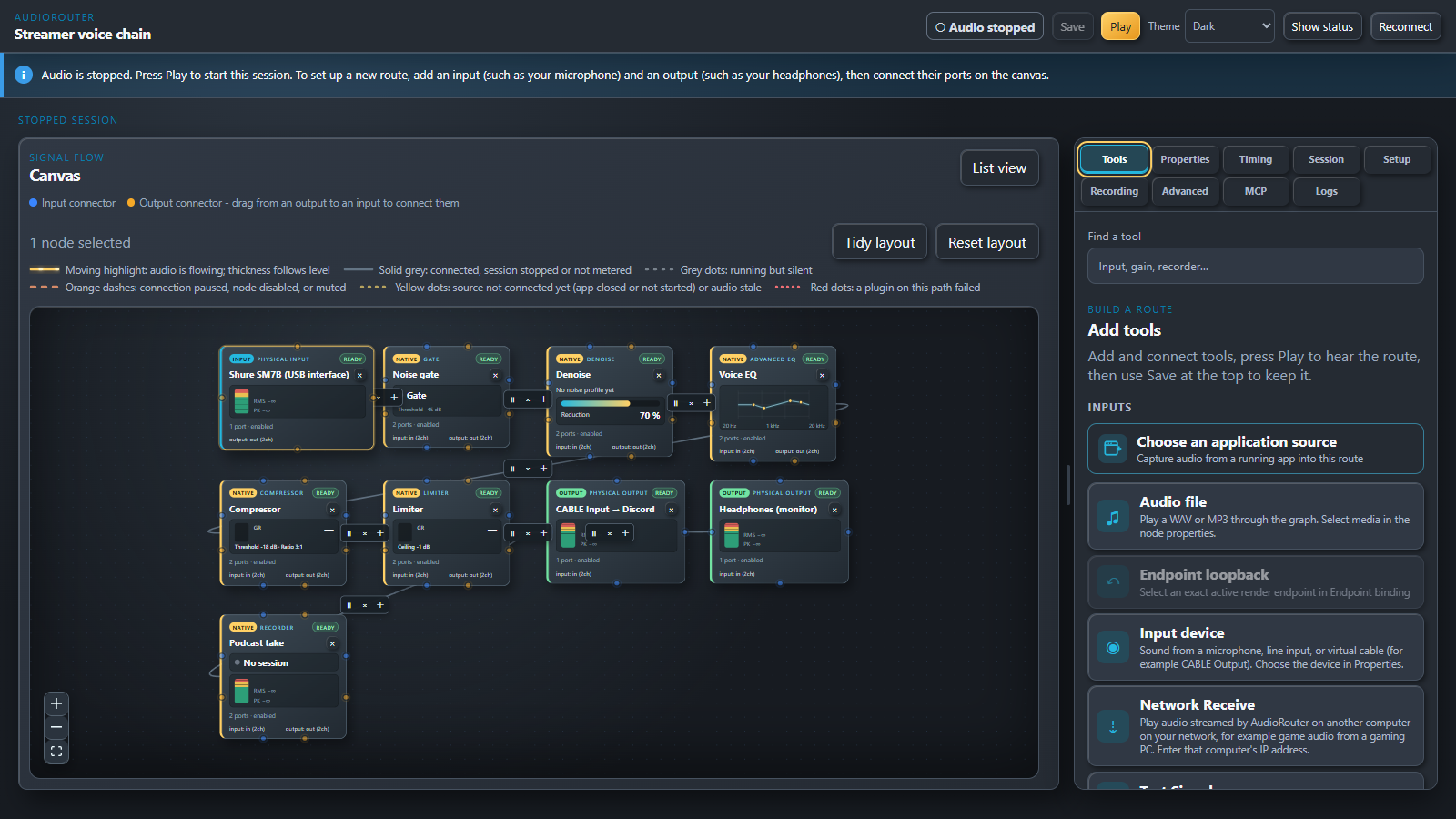
That one picture is basically my own setup. One microphone feeds five destinations at once: cleaned up for Discord, monitored in my headphones, and backed up to a recording, without duplicating any of the chain by hand.
The tools
There are more than 30 built-in tools: noise gate, denoise, speech denoise, de-hum, de-click, a 16 point parametric EQ you can drag directly on the frequency curve, a graphic EQ, compressor, limiter, delay, pitch shift, bass/treble, a Duck tool that ducks one source when another gets loud, and more. Every one of them is live: change a setting while the route is playing and you hear it immediately, no stop and restart.
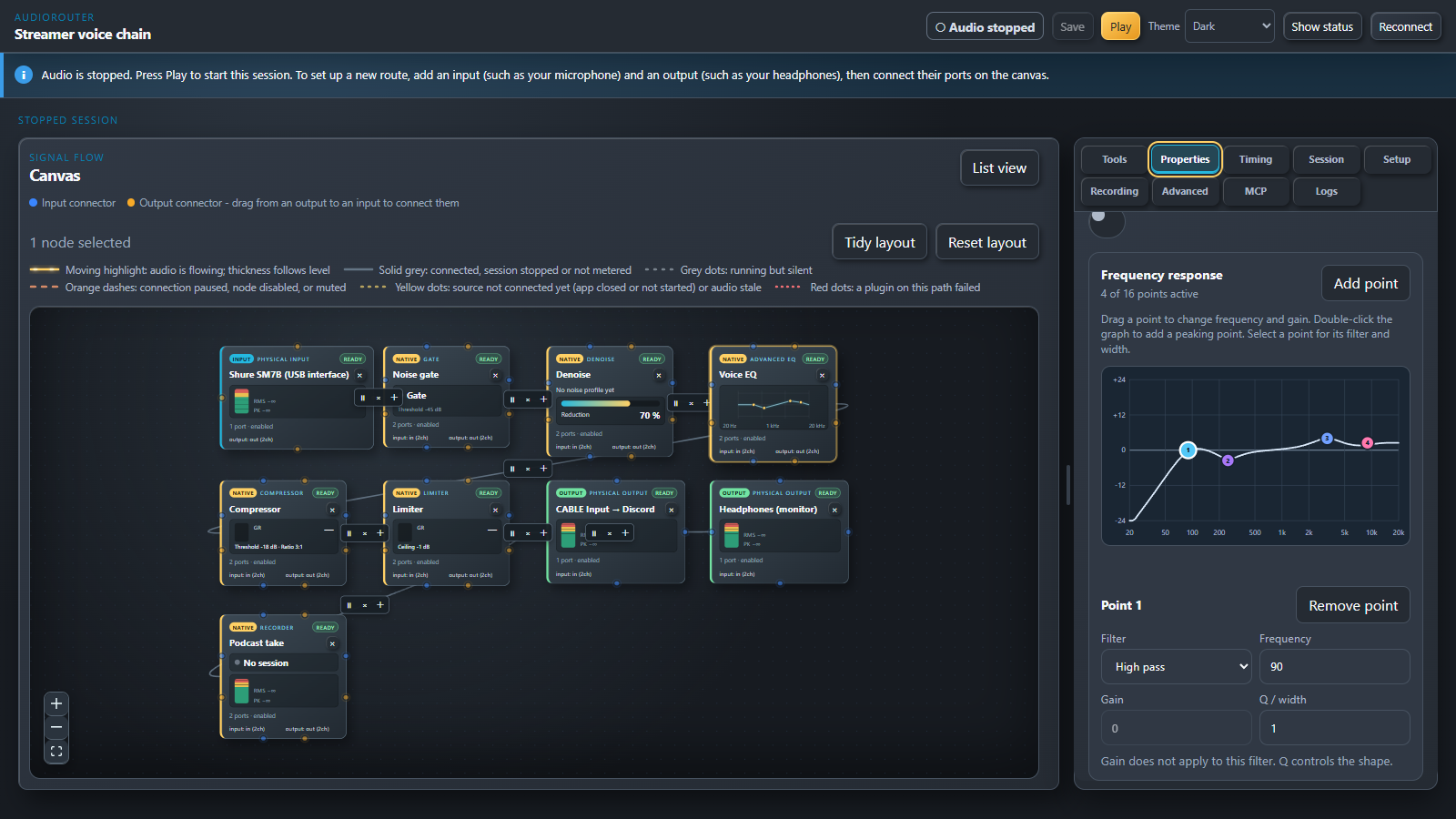
The Advanced EQ is the one I use the most. Up to 16 points, drag them on the curve or type exact numbers, high pass, low pass, shelves, peaking and notch filters. As of the 0.0.5 release it also draws the incoming sound spectrum behind the response curve, so you can see exactly which frequencies you're fighting instead of guessing.
If you already own VST plugins, you can load x64 VST2 (ReaPlugs, for example) and qualified VST3 effects and open their own editor windows while audio is playing. Each plugin runs in its own isolated worker process, so a plugin crash takes down that one plugin, not your whole route.
Two computers, one stream
This is the feature I didn't expect to use as much as I do. Network Send and Network Receive carry audio between two computers on the same local network, no extra software.
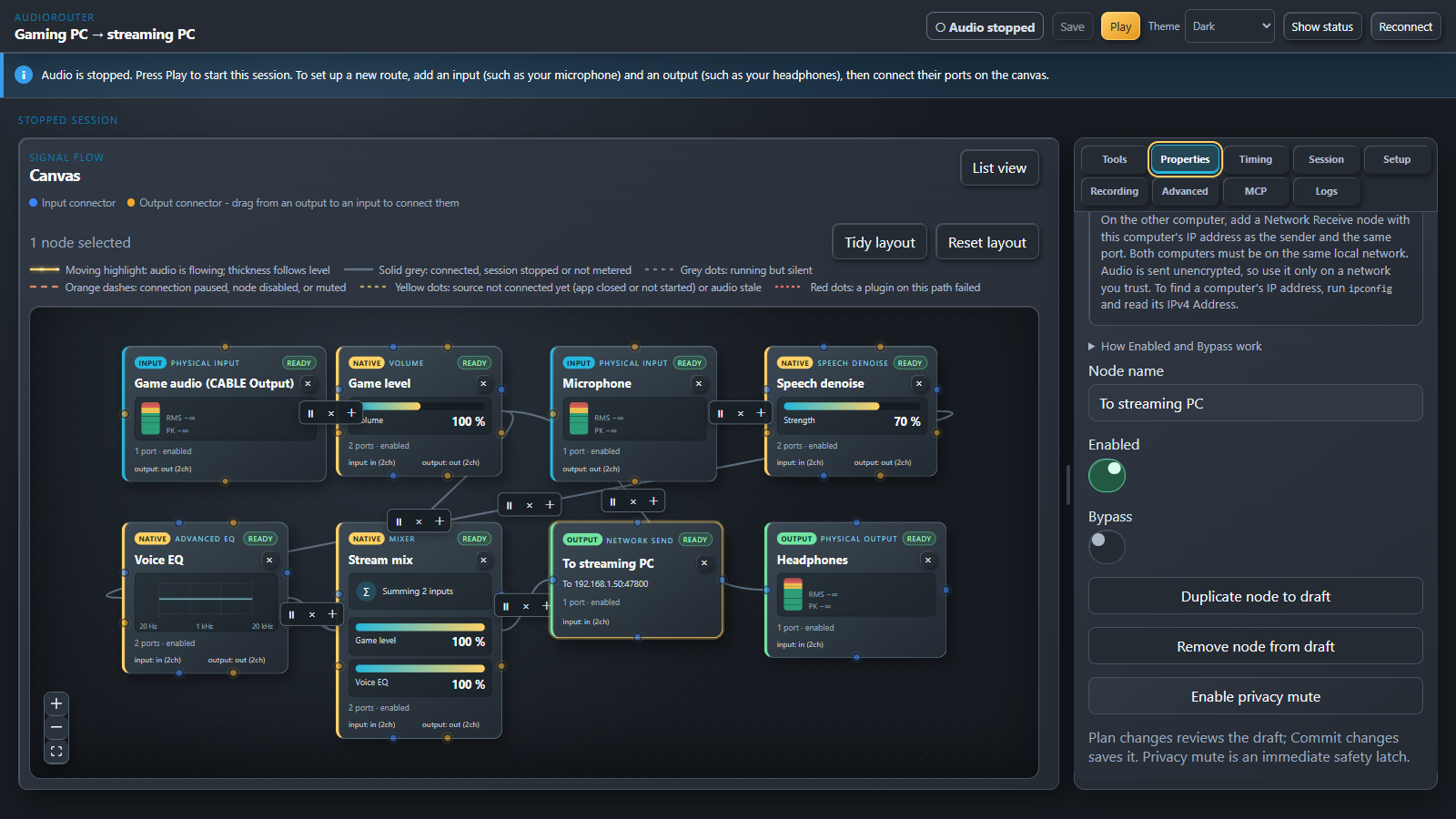
On the gaming PC, game audio and a cleaned up microphone get mixed and sent out. On the streaming PC, Network Receive picks it up, trims the level, and feeds OBS through a virtual cable while keeping a backup recording.
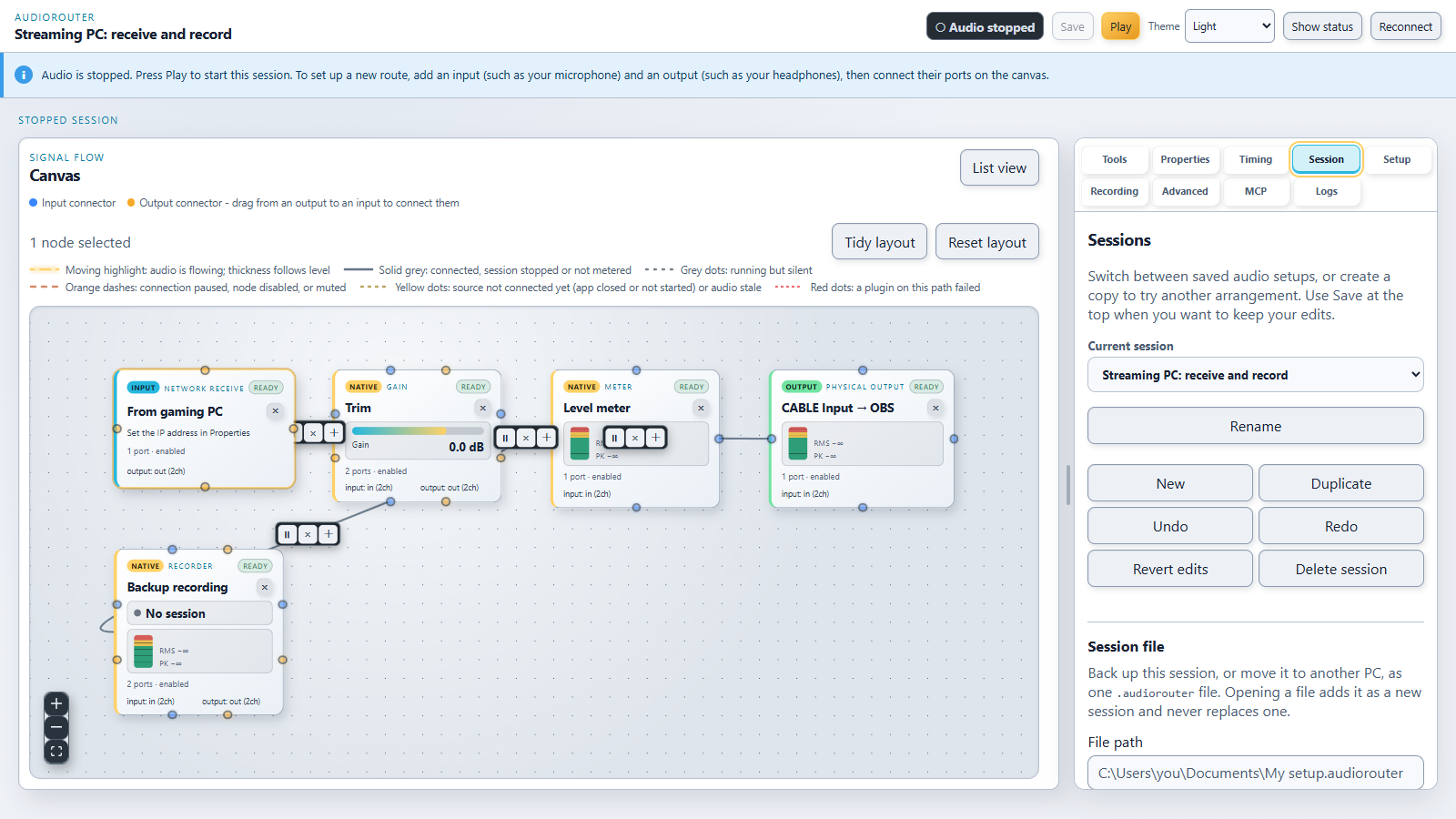
That split is exactly the setup in the video above. It also means the gaming PC does not need to run OBS or a recorder at all, which is one less thing fighting for CPU and GPU during a match.
Easy to get into, in practice
Getting a first route running is genuinely about a minute: add an input device and an output device, pick the real devices in Properties, drag a line from the input to the output, press Play. Adding a tool in between is dragging it onto the line. Every route can be saved as a named session, so I keep separate sessions for streaming, podcast recording, and late night gaming, and switch between them instead of rebuilding a routing table each time.
A few smaller things that came out of recent releases that I notice every day: one-click recording directly on a Recorder node with an optional new file every N minutes, application capture so I can route just the game or just Spotify instead of the whole desktop, and a Duck tool whose amount is now a slider with a visual pulse on the canvas while it's actively ducking.
The API and the MCP server
Everything in the UI goes through the same local API the CLI and an AI assistant use, there is no separate fast path for the interface. The current catalog is 103 methods over JSON-RPC on a local named pipe, scoped to your signed-in Windows account, plus an optional localhost HTTP adapter with a token if you'd rather call it over REST from something like a Stream Deck. Every method declares the permission it needs (read, graphWrite, record, sessionControl, deviceAdministration, and so on) and whether it is read-only or mutating, and mutations go through a plan then commit step so nothing touches live audio without a preview first.
On top of that API sits an MCP server, so an AI assistant can inspect and change your routing directly. I use this for the Rainbow Six Siege integration mentioned in the release notes: a small script reads Siege's own match state over its REST feed and calls sessions.togglePlay-style methods to duck my Mixer to 30 percent during menus and prep, and back to full during the actual round, no manual toggling during a match. The same API is what the Stream Deck integration in the quickstart docs uses for push button mute, route switching, and recorder start/stop. Nothing in that surface gets more trust than a human clicking the same button in the app; the permission check is identical either way.
If you want to try it, https://audiorouter.org is a per-user installer for Windows 11, unsigned for now so Windows will show a security prompt. It needs no audio driver install, it uses your existing devices or a virtual cable like VB-Cable if you want to route sound into another app.
Discussion
Replies are loaded from the public Mastodon thread for this article.
Loading replies from Mastodon...