
AudioRouter and MCP: How It Works and How to Set It Up
Posted on:
I built AudioRouter so I could route Windows audio by drawing a graph instead of maintaining a pile of hidden mixer settings. The next useful step was making that graph available to an AI assistant through the Model Context Protocol (MCP).
MCP is the part that lets an AI discover tools and call them. It does not replace the AudioRouter backend, and it does not give an assistant a secret way into the audio engine. AudioRouter still owns the sessions, graph validation, permissions, and audio processing. MCP is an adapter that translates an assistant's tool call into the same API request that the desktop application or command line client would make.
This article explains the pieces, then walks through connecting AudioRouter to ChatGPT.
What MCP adds
An MCP server exposes capabilities to an MCP client. In this case:
- AudioRouter is the MCP server because it exposes audio-related tools.
- ChatGPT is the MCP client because it discovers and calls those tools (other client could be use later).
- The AudioRouter backend remains the authority that reads devices, loads sessions, edits graphs, and starts or stops playback.
The assistant does not need to know how AudioRouter stores a session or how the Rust audio engine works. It sees a tool description, a parameter schema, and a result. For example, a simplified tool might look like this:
{
  "name": "list_sessions",
  "description": "List saved AudioRouter sessions and their revisions.",
  "inputSchema": {
    "type": "object",
    "properties": {}
  }
}
When I ask ChatGPT to list my sessions, the sequence is roughly:
- ChatGPT chooses
list_sessionsbased on the request and the tool description. - The MCP client sends a tool call to AudioRouter.
- AudioRouter checks the client and the requested permission.
- The MCP adapter calls the normal AudioRouter API.
- The result goes back through MCP and is shown in the conversation.
The important detail is step four. MCP does not contain a second implementation of session management. It reaches the same control plane as every other client.
The AudioRouter side of the connection
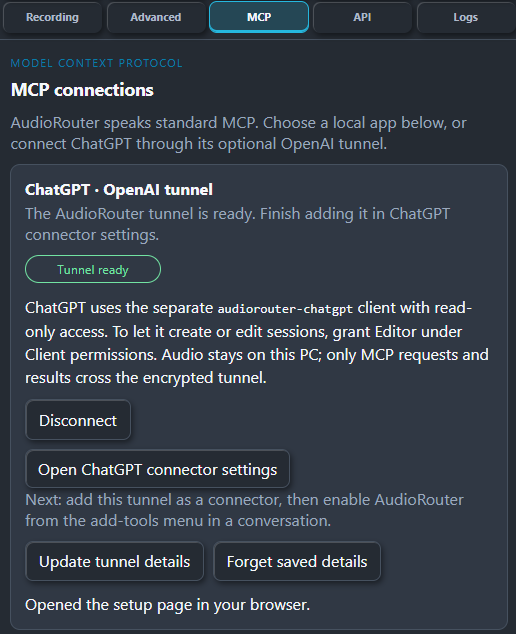
AudioRouter exposes a local MCP connection from its MCP settings page. The application can create an optional OpenAI tunnel, which gives ChatGPT a way to reach the local MCP server without AudioRouter becoming a general public audio service.
The tunnel carries MCP requests and responses. The audio itself stays on the Windows computer. If ChatGPT asks for the list of sessions, only the structured result crosses the tunnel. If it asks for a graph edit, the request crosses the tunnel, but the actual microphone and speaker streams remain local.
That separation is useful for two reasons:
- The assistant can inspect or configure a setup without transporting audio to the cloud.
- The backend can apply its normal authorization rules before a request changes anything.
In my current setup, the connection starts with read-only access. That lets ChatGPT inspect devices, sessions, and routes while I decide whether it should be allowed to edit them. If I grant the Editor permission, the assistant can create or change sessions through the same plan and commit workflow used by the desktop application.
How to connect it to ChatGPT
The exact labels may change as the ChatGPT connector UI evolves, but the process is straightforward.
1. Start AudioRouter
Open AudioRouter on Windows and select the MCP tab. The MCP page shows the connection state and the available client permissions.
If the OpenAI tunnel is not connected, finish the connection from this page. AudioRouter will show when the tunnel is ready and will provide the details needed by the ChatGPT connector.
2. Add a custom MCP connector
In ChatGPT, open the plugins or connectors area and choose the option for adding a custom MCP server. Enter a name such as AudioRouter.
The connection type should be the tunnel option supplied by AudioRouter. Paste the tunnel value into the connection field. The tunnel is a connection identifier, not a description of your audio devices, so it is normal that the field looks opaque.
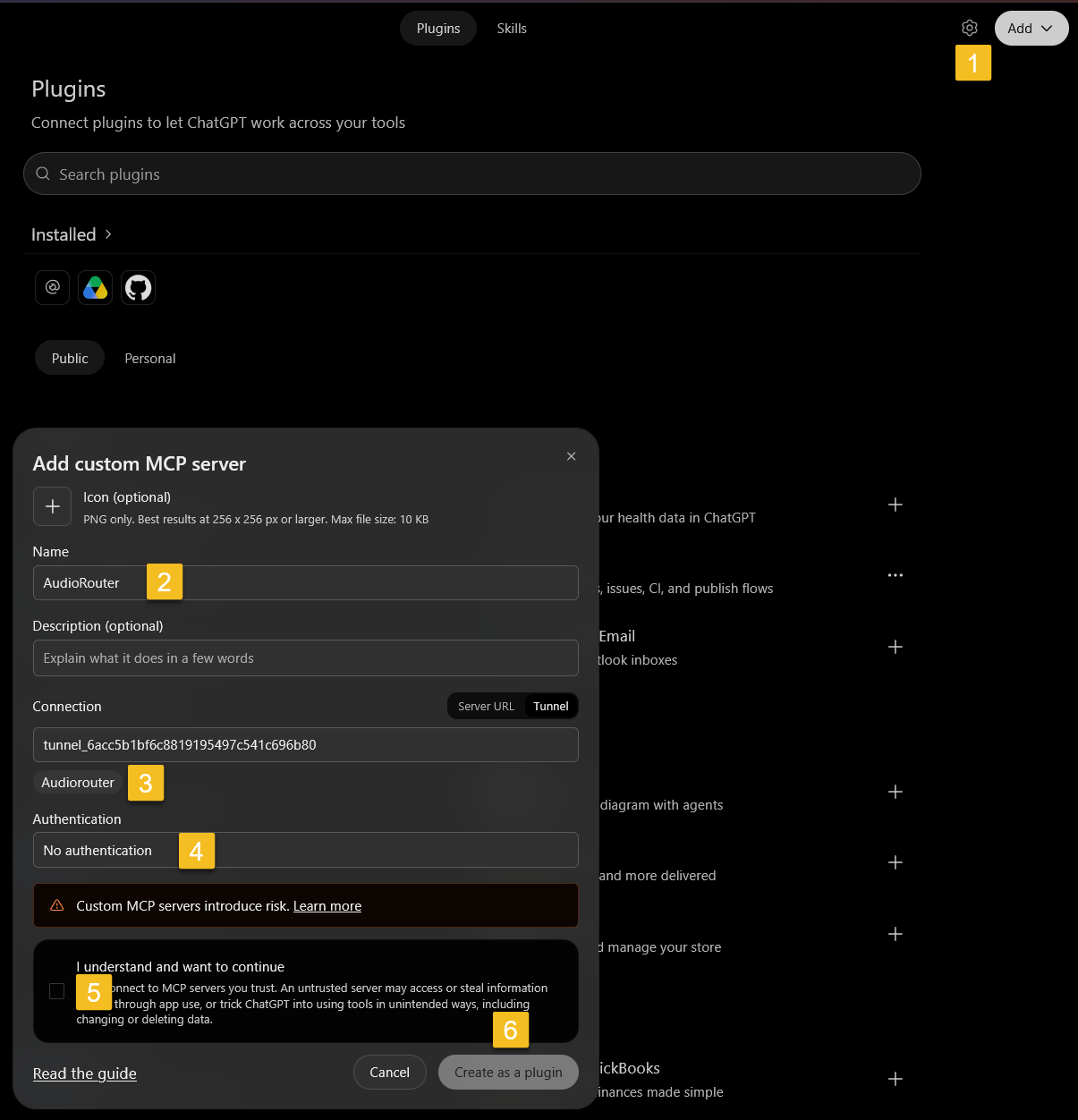
ChatGPT displays a warning when a custom MCP server is added. Read it, confirm that you trust the local application and its tunnel, and create the connector.
3. Enable AudioRouter in a conversation
Start a new conversation, open the add-tools menu, and enable the AudioRouter connector. The assistant can only call the tools when the connector is enabled for that conversation.
Start with a read-only request:
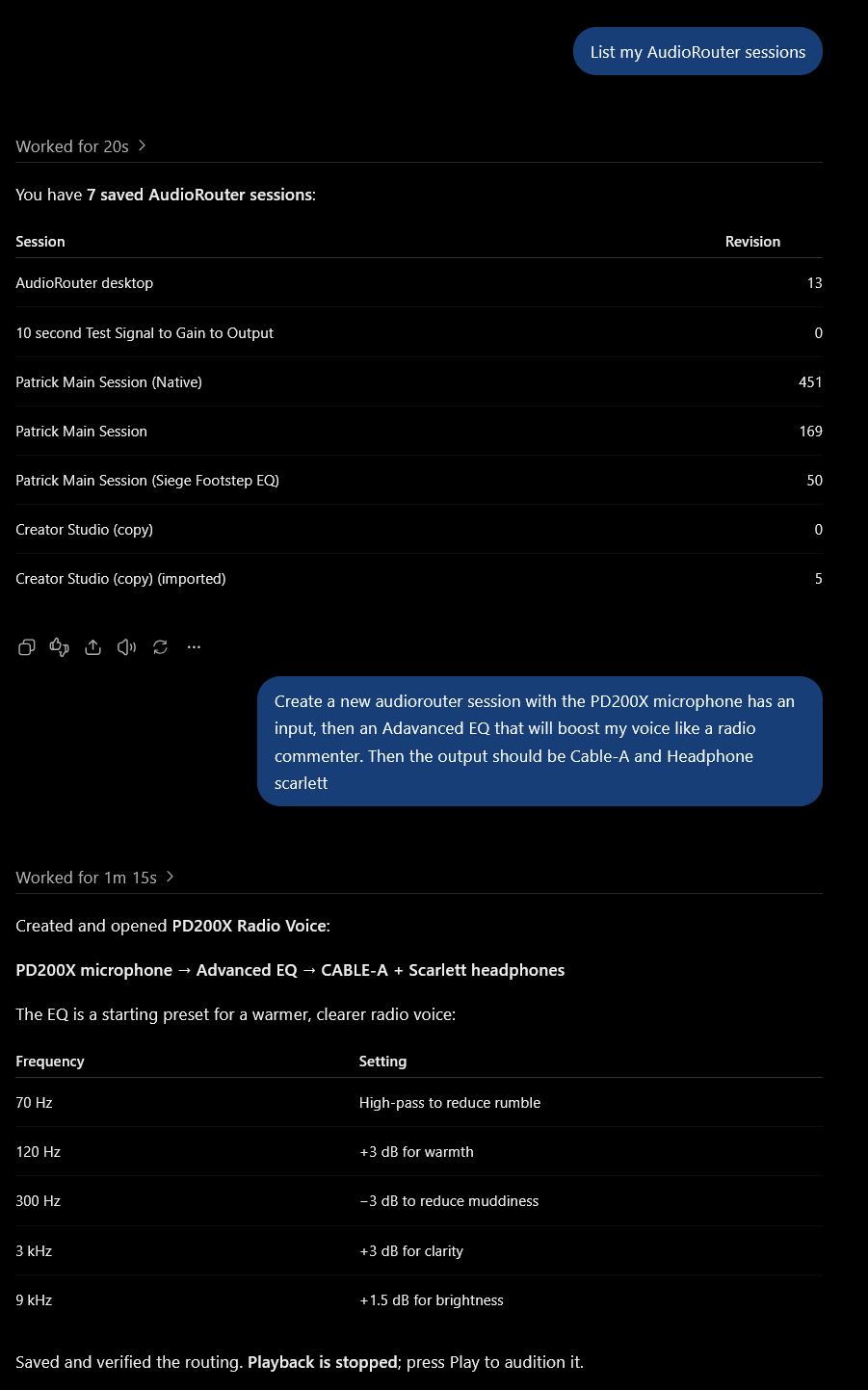
List my AudioRouter sessions and show which one has the highest revision.
This is a good first test because it proves the whole path without asking the assistant to alter anything. You should see a tool call, a short wait, and a response containing the sessions returned by AudioRouter.
What a real MCP request looks like
MCP uses JSON-RPC messages. The transport handles how messages move between the client and server, while the MCP methods define discovery and tool calls. A simplified request to call the tool above looks like this:
{
  "jsonrpc": "2.0",
  "id": 14,
  "method": "tools/call",
  "params": {
    "name": "list_sessions",
    "arguments": {}
  }
}
AudioRouter's adapter receives that request and maps it to the backend method that lists sessions. The result is returned as MCP content, commonly as text or structured JSON:
{
  "jsonrpc": "2.0",
  "id": 14,
  "result": {
    "content": [
      {
        "type": "text",
        "text": "AudioRouter desktop (revision 13)"
      }
    ]
  }
}
The names differ between the MCP surface and the internal API on purpose. A tool such as list_sessions is easier for an assistant to select than a low-level method with several transport and revision details. The adapter still preserves those details when it calls the backend.
Asking MCP to build a session
Once read access works, the useful part begins. I can describe the audio result instead of manually creating every node and connection:
Create a new AudioRouter session with the PD200X microphone as an input, an Advanced EQ that gives the voice a radio-style sound, and two outputs: Cable-A and Scarlett headphones. Save it, but do not start playback.
This request requires more than one operation. A sensible MCP tool sequence is:
- List devices so the assistant can use the exact device names.
- Create or select a session.
- Add the microphone input node.
- Add an Advanced EQ node.
- Add the two output nodes.
- Connect the nodes.
- Set the EQ parameters.
- Ask AudioRouter to validate and plan the graph change.
- Commit the plan with the user's approval or according to the permission granted to the client.
- Save the session and report what was created.
The result is still an ordinary AudioRouter graph. In the example below, the microphone feeds the EQ, and the EQ feeds both outputs. ChatGPT did not create a special AI-only route.
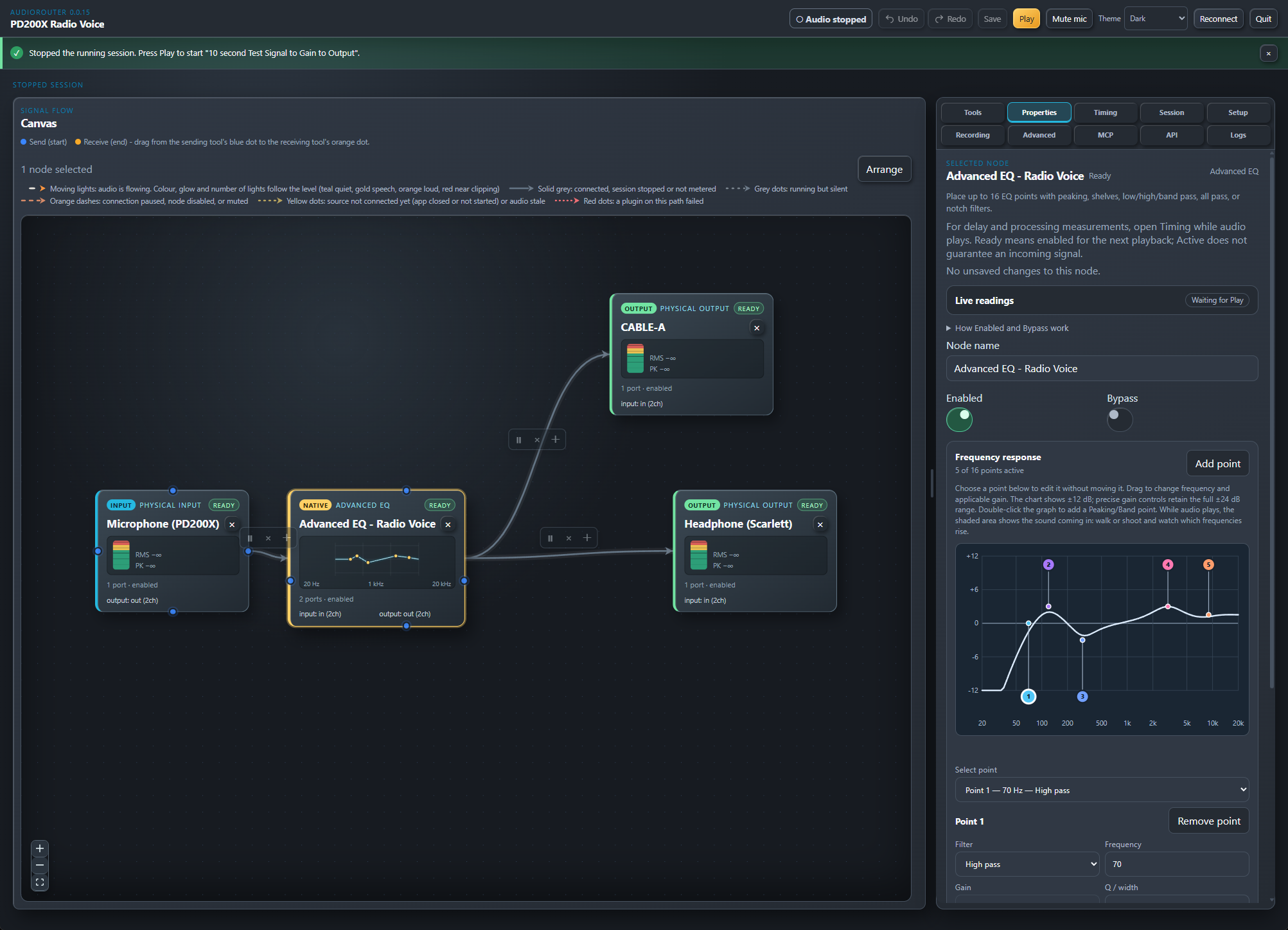
The plan step matters. AudioRouter can show the proposed changes, detect missing devices or invalid connections, and reject a stale plan if another client changed the session in the meantime. This makes an AI request subject to the same safety checks as a change made in the desktop UI.
Permissions and what the assistant cannot do
An MCP tool description is not a security boundary. AudioRouter checks authorization in the backend for every request. The assistant may see a tool that can edit a session, but the backend still decides whether that client has the required scope.
There are also operations that remain interactive. For example, granting access to a new microphone or speaker can require an explicit action in the AudioRouter desktop application. Connecting an AI assistant does not silently grant it permission to open every device.
I recommend this progression:
- Begin with read-only access.
- Ask the assistant to list devices, sessions, and routes.
- Try a harmless plan, such as creating a stopped session.
- Grant editor access only when you understand the changes it can make.
- Keep playback stopped while testing generated graphs.
MCP makes the assistant capable of taking actions, so the normal rules for automation still apply. Use precise requests, inspect the result, and do not grant more access than the task needs.
Why this is useful in practice
The most valuable part is not asking an assistant to press a virtual Play button. It is letting me describe intent at the level I actually think about audio:
Make a voice route for Discord and my headphones. Keep the raw microphone out of the recording output. Add a high-pass filter and a compressor, then save it as Streaming voice.
That request still needs exact devices, graph nodes, parameters, and connections, but MCP gives the assistant a controlled way to turn the description into those operations. I can then inspect the graph visually and adjust the details by hand.
It also makes AudioRouter easier to integrate with other automation. A script can use the same MCP or API surface to load a session before a recording, mute a route during a game menu, or inspect whether a device disappeared. The MCP layer is useful because it gives an AI model the discovery and schema information it needs, while the backend remains responsible for correctness.
Conclusion
To try it, enable the OpenAI tunnel in AudioRouter, add the tunnel as a custom MCP connector in ChatGPT, enable the connector in a conversation, and begin with a read-only request. Once that works, ask for a stopped session and inspect the generated graph before allowing playback.
The result is a practical interface to a fairly technical system: I can still see every node, connection, and parameter, but I no longer have to manually assemble all of them for every new audio setup.
Discussion
Replies are loaded from the public Mastodon thread for this article.
Loading replies from Mastodon...